
FileZilla FTP Client: Setup, Site Manager, and the Advanced Features Most Users Never Find
Most FileZilla users stick with quickconnect and drag-and-drop. The client has a much deeper feature set — directory comparison, synchronized browsing, regex search, color-coded site profiles, bookmarks — that turns it from "an FTP client" into something closer to a real file management tool. Here's the guide to the features worth learning.
The FileZilla FTP client is the most-used FTP client in the world: free, open-source, runs on Windows / Mac / Linux, supports FTP / FTPS / SFTP. Most users learn quickconnect and drag-and-drop and stop there. The client has a deeper feature set worth knowing about: directory comparison, synchronized browsing, regex file search and filters, color-coded site profiles, and a handful of keyboard shortcuts that meaningfully accelerate daily use. This post walks through the features most users never discover.
The first section below gets FileZilla installed and connected. Everything after it is the layer most users never reach.
Getting the FileZilla FTP client set up
Download the client from the FileZilla project site, not from a third-party download portal; the project's own installer is the one without bundled extras. It runs on Windows, macOS, and Linux and speaks FTP, FTPS, and SFTP.
Skip quickconnect for anything you will connect to twice. Open the Site Manager (File, then Site Manager), add a new site, and fill in the host, the protocol (choose SFTP for any server that offers it, FTPS explicit for an FTP server with TLS, plain FTP only when nothing else is available), the port, and the logon type. For SFTP with a key, set the logon type to Key file and point it at your private key; FileZilla converts PuTTY .ppk keys on the way in.
Connect once, accept the host key or certificate after checking its fingerprint against what the server's owner gave you, and the connection is saved. From here on, everything in this post applies to that saved site.
For the FTP client software landscape beyond FileZilla, and for the alternatives worth trying when it is not the right fit, the sibling posts cover the field.
Directory comparison
The single most useful advanced feature. Directory comparison highlights files that differ between your local filesystem and the remote server — by size, by modification time, or by presence.
Enable it: View → Directory comparison → Enable, or Ctrl+O (Windows) / ⌘O (macOS).
Two modes:
- Compare by file size (
View → Directory comparison → Compare filesize) — files with different sizes on the two sides highlight in red. Useful for catching transfers that didn't complete fully. - Compare by modification time (
View → Directory comparison → Compare modification time) — files modified more recently on one side highlight in green. Useful for figuring out which copy is the newer version.
In both modes, files present on only one side highlight in yellow. That's how you spot files that were renamed (the old name shows on one side; the new name shows on the other; neither appears on both).
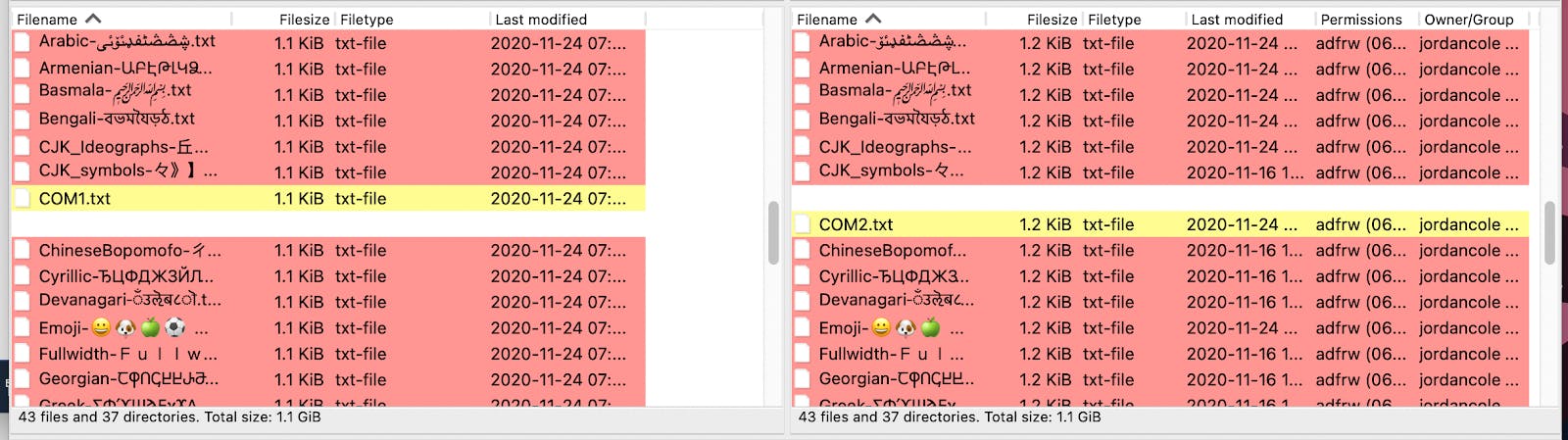
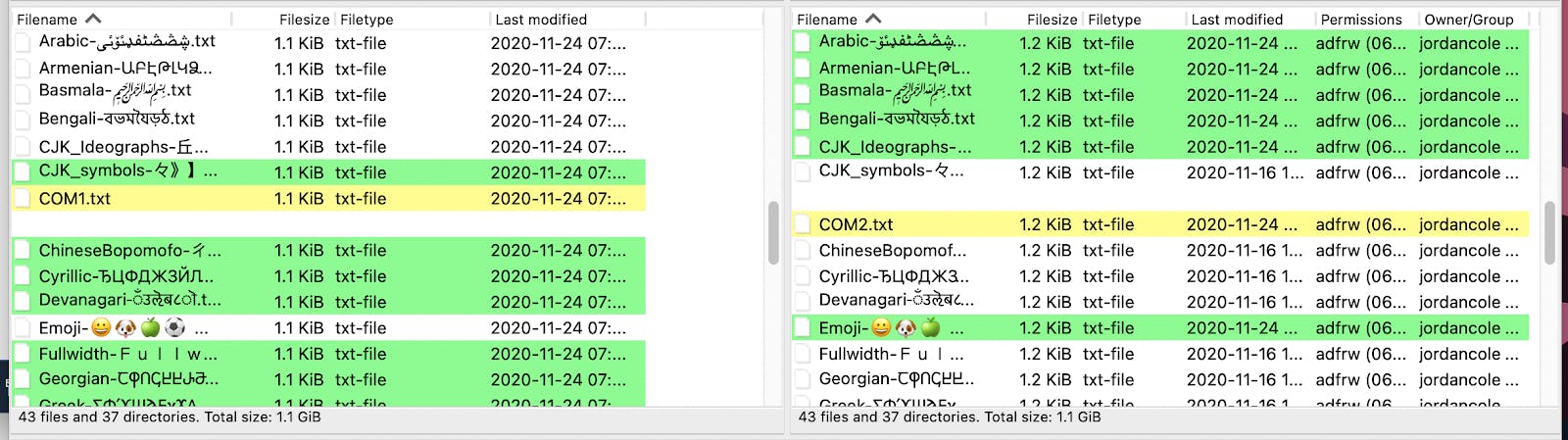
Hide identical files (View → Directory comparison → Hide identical files) cuts the noise — only the differing files stay visible. Useful when you have a folder of hundreds of files and want to focus on the two that don't match.
Synchronized browsing
If you keep the same directory structure locally and on the server, synchronized browsing keeps both sides in lockstep as you navigate. Change directory on the local pane and the remote pane moves to the corresponding directory — and vice versa.
Enable it: View → Synchronized browsing, or Ctrl+Y (Windows) / ⌘Y (macOS).
This is most useful for:
- Website deployment where the local working copy mirrors the live site's
public_htmlstructure. - Multi-folder file delivery where you're navigating in and out of nested folders on both sides.
- Working with directory comparison — synchronized browsing keeps the comparison view accurate as you move around.
Pair it with default local and remote directories in the site manager (see below) so that the directories match the moment you connect.
Color-coded site profiles
If you connect to multiple FTP servers (production, staging, dev, partner endpoints), the visual difference between them helps prevent "I just deployed to production by mistake" moments. FileZilla's site manager supports per-site background colors.
Set a color: File → Site Manager → [your site] → General tab → Background color.
The chosen color shows in the directory panes when you're connected to that site. A red background for production, a green one for staging, a yellow one for partner endpoints — your eyes catch which environment you're in before you click upload.
Regex search and filtering
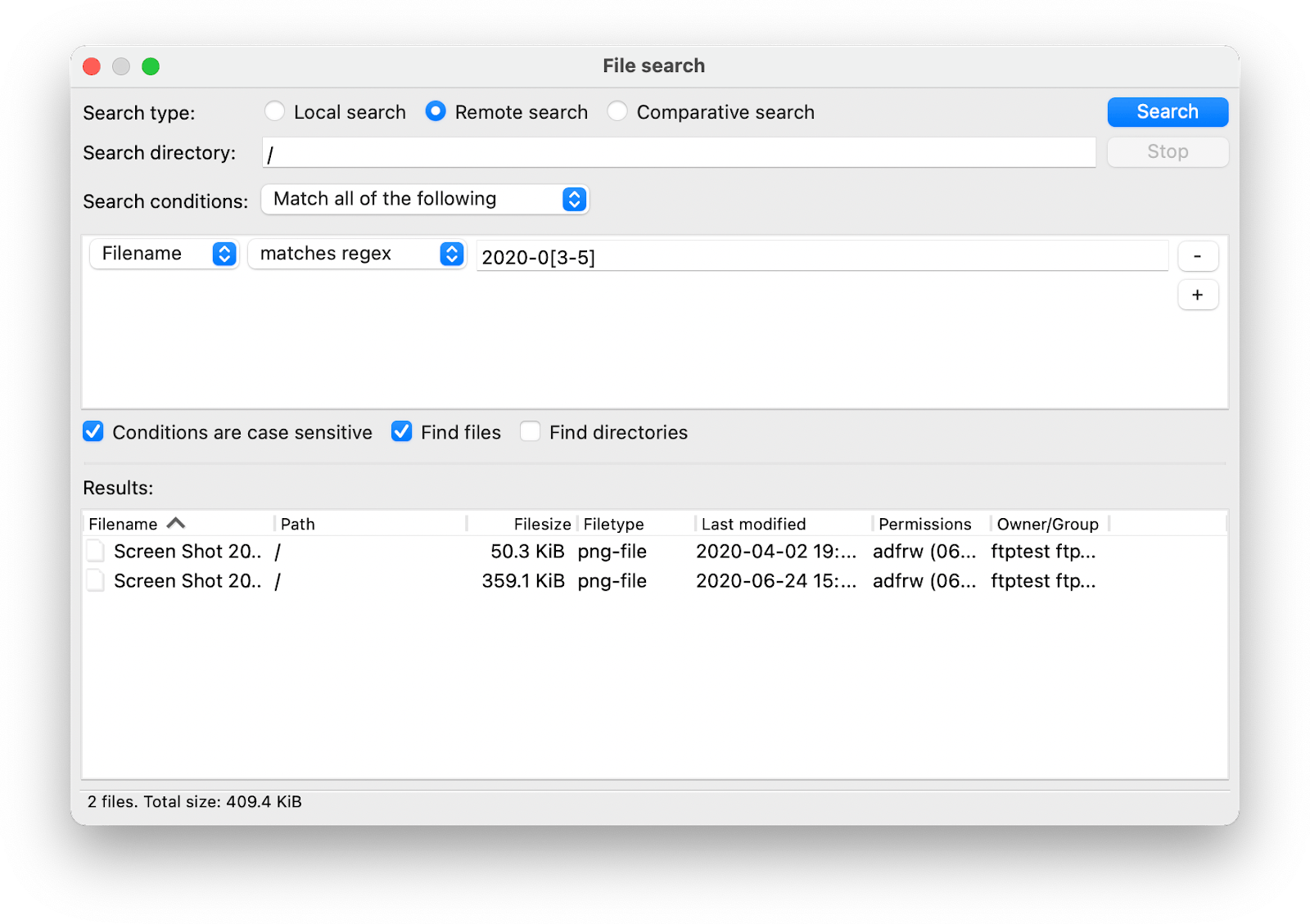
FileZilla's file search and directory listing filters both support regular expressions — the same regex syntax most modern tools use. This is what makes finding files in large directory listings actually usable.
File search: Server → Search remote files, or F3.
Example use cases:
- Find screenshots from a specific month:
2024-0[3-5](matches 2024-03, 2024-04, 2024-05 anywhere in the filename). - Find files with specific extensions:
\.(csv|xlsx)$(matches CSV and Excel files). - Find files with version numbers:
v[0-9]+_final(matches v1_final, v2_final, etc.).
Directory listing filters: View → Filename filters. Lets you hide files matching a pattern from the directory display — useful for ignoring system files (.DS_Store, Thumbs.db), backup files (*.bak), or specific naming conventions.
The full FileZilla regex syntax is documented at wiki.filezilla-project.org/Regular_Expressions.
Site manager: features worth setting
Beyond the host / username / password basics, the site manager has several settings that meaningfully improve daily use:
- Default remote directory — opens to a specific path on connect instead of the user's home. Set this on the Advanced tab.
- Default local directory — pairs the local pane with a specific folder on your machine.
- Use synchronized browsing — auto-enable synchronized browsing for this site (checkbox on the Advanced tab).
- Directory comparison — auto-enable on connect (checkbox on the Advanced tab).
- Transfer mode — force passive (or active) for this site instead of using the global default. Transfer settings tab.
- Limit number of simultaneous connections — useful for servers that cap concurrent connections per user. Transfer settings tab.
- Server time zone offset — corrects modification-time displays for servers in a different time zone. Advanced tab.
Bookmarks
For directories you visit repeatedly inside a server, bookmarks are faster than navigating from the root every time. Bookmarks → Add bookmark while connected — gives the bookmark a name and an associated remote directory (and optionally a local one).
Bookmarks live per-site in the site manager, so they don't clutter your global bookmark list.
Keyboard shortcuts worth knowing
The ones that meaningfully speed up daily use:
| Shortcut | Action |
|---|---|
| Ctrl+S / ⌘S | Open Site Manager |
| Ctrl+Q / ⌘Q | Quickconnect bar focus |
| Ctrl+R / ⌘R | Refresh current directory |
| Ctrl+O / ⌘O | Toggle directory comparison |
| Ctrl+Y / ⌘Y | Toggle synchronized browsing |
| F3 | File search |
| F5 | Refresh both panes |
| F7 | Toggle filename filters |
Transfer queue: queue management features
The transfer queue isn't just a passive list — it's a tool you can manipulate:
- Pause and resume individual transfers by right-clicking in the queue. Useful when you want a large transfer to wait until others finish.
- Reorder the queue by drag-and-drop. Higher-priority files first.
- Save the queue and reload it later — useful when you have to interrupt a large multi-file transfer.
- Set transfer speed limits globally (
Edit → Settings → Transfers → Speed limits) or per-transfer.
When FileZilla isn't the right tool
The features above cover most FTP-client use cases. A few cases where another tool fits better:
- Drive-mapping workflows — if you want remote files to feel like local files (open in Office, save back, no explicit transfer step), use ExpanDrive (free for personal use, on Mac, Windows, and Linux), Mountain Duck, or WebDrive instead.
- Scripted automation — FileZilla has limited scripting support. Use lftp, WinSCP (which has a proper CLI), or a language library (
paramikofor Python,ssh2for Node) for automation. - Premium Mac experience — Transmit by Panic has a more polished interface than FileZilla on macOS, with native cloud-storage backends. Worth the $45 if you live in FTP daily.
- Multi-cloud storage as part of the workflow — Cyberduck has broader support for S3, GCS, Azure Blob, Backblaze, Dropbox, Google Drive alongside FTP / SFTP / FTPS.
See our 7 FileZilla alternatives roundup for the longer comparison.
The modern way: a platform that pairs with whichever client you pick
Files.com is the File Orchestration Platform we'd recommend on the server side of FileZilla workflows. FileZilla connects to it via standard SFTP / FTPS / FTP — your existing FileZilla site profiles work without change, and the platform adds:
- Per-user SSH key auth, auto-managed TLS, MFA, SSO.
- Audit logging on every transfer, queryable in the dashboard.
- Webhooks that fire when files arrive (cleaner than FileZilla's directory comparison for automation).
- REST API for the cases where FileZilla scripting isn't enough.
- SOC 2 Type II, HIPAA-BAA, GDPR-ready posture.
Start a free Files.com trial — no credit card, provisioned in about 10 minutes.
For teams that need to run file-transfer infrastructure inside their own datacenter, the free ExaVault on-premise appliance handles SFTP / FTPS / FTP / WebDAV from a self-hosted VM image.
FAQ
How do I compare local and remote directories in FileZilla?
View → Directory comparison → Enable, or Ctrl+O / ⌘O. Choose Compare filesize or Compare modification time from the same submenu. Differences highlight in color in the directory panes.
How do I search for files in FileZilla?
Server → Search remote files, or press F3. Supports regular-expression patterns for both filename and path matching. See wiki.filezilla-project.org/Regular_Expressions for the regex syntax.
Can FileZilla synchronize directories?
Yes — synchronized browsing (View → Synchronized browsing, or Ctrl+Y / ⌘Y) keeps the local and remote panes navigating in lockstep. Combined with directory comparison, it lets you spot and resolve differences as you move through a directory tree. For true automated synchronization (one-way mirror, two-way sync), lftp mirror or a managed-file-transfer platform's sync features are a better fit.
What's the FileZilla site manager?
The saved-site configuration dialog (File → Site Manager, or Ctrl+S / ⌘S). Stores per-site connection details, default directories, transfer settings, and the per-site background color. Once a site is in the manager, double-clicking it connects with all your saved settings.
Does FileZilla support regular expressions?
Yes, in two places: file search (F3) and filename filters (View → Filename filters). The regex flavor is documented at wiki.filezilla-project.org/Regular_Expressions. Useful for finding files by partial name match, extension, version number, or date in the filename.
How do I filter the file listing in FileZilla?
View → Filename filters opens the filter dialog. Create named filter sets that hide files matching specific patterns — by name, extension, or regex. Useful for ignoring system files (.DS_Store), backup files (*.bak), or noise that clutters a directory listing.
Can FileZilla bookmark specific directories?
Yes — Bookmarks → Add bookmark while connected. Bookmarks are stored per-site (so the production site's bookmarks don't appear when you connect to staging), with an optional matched local directory.
How do I save a transfer queue in FileZilla?
Transfer → Process queue runs the current queue; Edit → Settings → Transfers → Queue configures auto-save behavior. The queue is automatically saved on quit by default and restored when FileZilla reopens.
Keep reading
- 7 FileZilla Alternatives Worth Trying (for Mac, Windows, and Linux)FileZilla is the most-used FTP client, but it isn't always the right one. Seven solid alternatives — Cyberduck, Transmit, Forklift, WinSCP, WS_FTP, Core FTP, and the drive-mounting clients — with honest recommendations for which OS, which workflow, and which budget.
- FTP Client Software: What an FTP Client Is, the Popular Clients and Servers, and Which to UseFTP software comes in two flavors — clients (FileZilla, WinSCP, Cyberduck) that you run on your desktop, and servers (vsftpd, ProFTPD, OpenSSH) that listen for connections. Here's what each does, the popular options, and how to pick the right one for your shape of work.
- How to Access an FTP Site Today: Desktop Client, Network Drive, or Web File ManagerBrowsers dropped FTP, so ftp:// links no longer open. Here is how to access an FTP site today: log in with a desktop client like FileZilla, WinSCP, or Cyberduck, map it as a network drive in Explorer or Finder, or use a cloud platform whose web file manager fronts the FTP, SFTP, and FTPS endpoints so the browser experience comes back.
- How to Use SFTP: Connect, Transfer, and Verify a File Transfer Step by StepSet up your first SFTP file transfer in under 10 minutes. Pick a client (FileZilla, WinSCP, Cyberduck, Transmit), configure the connection, transfer a test file, verify the host key. The practical walkthrough for getting from zero to working SFTP.